As you type, suggestions based on what you have entered are shown. You can continue typing or select a suggestion.
Tip: If you press and hold a letter key on the keyboard, you get access to extra characters if they are available. For example, press and hold the letter "e" to access characters 3 e è é ê ë and more.
Tip: To see more results, hide the keyboard or scroll down the results list.
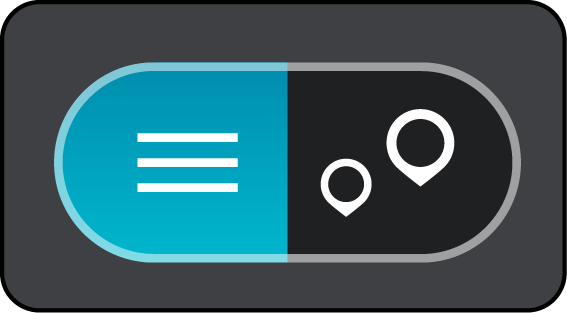
Tip: You can switch between seeing the results on the map or in a list by selecting the list/map button:
Tip: If your contact does not have an address, press and hold on your contact name and you will get the option to add an address.
Your contact is shown on the map.
Note: If your contact has multiple addresses, all the locations are shown on the map. Select a location to show the address
A route is planned and then guidance to your destination begins. As soon as you start driving, the guidance view is shown automatically.
Tip: If your destination is in a different time zone, you see a plus (+) or a minus (-) sign and the time difference in hours and half hours in the arrival information panel. The estimated time of arrival is the local time at your destination.
Tip: You can add a stop to a route that you have already planned.
Tip: You can save a route using My Routes.