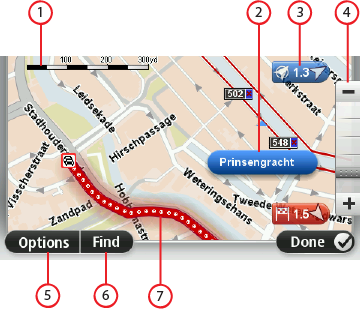
View map

  1. The scale bar
  2. The cursor with street name balloon. The selected street is highlighted on the map. The house number range is shown for the part of the street that is selected. When there are only house numbers on one side of a street, a red X is shown for the side without house numbers.
  3. Marker

    A marker shows the distance to a location. Markers are coloured as follows:

    Tap a marker to centre the map on the location pointed to by the marker.

    To turn markers off, tap Options, then Advanced and clear the Markers checkbox.

  4. The zoom bar

    Zoom in and out by moving the slider.

  5. Options button

    Tap this button to show the map options.

  6. The Find button

    Tap this button to find specific addresses, favourites or Points of Interest.

  7. Traffic - current traffic incidents. Use the Options button to select whether traffic information is shown on the map. When traffic information is shown on the map, POIs and Favourites are not shown.